azcrumpty's Site
  • Home
  • About
    • Contact
    • Gaming
  • Resume
  • Journal
  • Blog
  • Photos
    • Flickr Photos
  • Search
IBM HTTP Servers 6.1 and 7.0 Isolated Process Configuration Guide 04/13/2012
0 Comments
 
IBM HTTP Servers 6.1 and 7.0 take advantage of Apache's virtual hosting feature but having all of your virtual sites in one IHS server means all virtual hosts must be turned off to stop the http server resulting in outages or reduced capacity for all sites sharing that IHS instance. There is an unofficial way to use isolated IBM HTTP server processes to get the job done. We can build isolated independant configurations for the HTTP server which you can be stop and start without impacting another shared application on the same server. This configuration is largely unsupported by the DMGR console and must be configured at the command prompt level. The information within is an unsupported hack and should not used for production runs.

The first step is to build the HTTP server config. A more elegant file naming method than what is shown in the linked document involves creating descriptive application folder locations for each virtual application so you could have conf/app_marketing/httpd.conf, log/app_marketing/access_log, and /app_marketing/index.html but for brevity, I will just number the instances in this guide. This approach is successful if the new http server is defined with isolated files and folders such as cgisock, sidd, ./htdocs2, etc. for its own run. Copy your httpd.conf to httpd2.conf, then make all the edits shown in the build document so the web server has unique ports/IPs, folders, and files it needs for run time. You will perform a second round of steps using the deployment manager after the command line tasks are completed. Note that the deployment manager is a repository and the plugin data will be overwritten by it so the webserver1 data is used only to make sure its starts without errors. You could leave the folders blank and test after all steps are completed.

After all of the command line configuration is completed, you should test the web server to see if it works using curl, wget, or a browser. The web server should be started if you used the build document. Since webserver2 is a copy of webserver1, testing static content using your favorite testing tool is a better idea. Some web apps keep all static content in the enterprise application resource so check your access and error log files to ensure requests are coming through and they are logged.  

You may further test the J2EE application if your virtual host (vhost) already enables the new server's hostname and port combination to run the application. This example doesn't show such a configuration but if you are removing an existing vhost and using this guide to isolate it then, a curl test on the application would work smoothly at this point because the definition would already exist in the plugin file.  

Move on to the next step ff the new web server, webserver2, passes these basic tests.  

The web server is working but it is just a copy of the data in webserver1 and since you wanted process level isolation for a different application so you must also go to the Deployment Manager to make the application specific changes, pushing out the remaining configuration from the management console. After all shell level configuration is done, proceed to the WebSphere deployment manager in System Administration -> Nodes. Create an unmanaged node pointing to the host of the http server.

Picture
Add Unmanaged Node
Picture
WebNode02 On IHS 6.1 Server
Now, you may create webserver2 in that node in Servers -> Web servers. Now, you will see that webserver2 is defaulted with the original httpd.conf. We must use the GUI and change the name from httpd.conf to httpd2.conf. WebSphere will read the configuration information from the file. Propagate the plugin key store and config files now to check for any possible errors which you should stop and correct. If you can read the configuration file, your deployment manager is now connected to webserver2. Scroll to the bottom to see your changes and ensure you have the webserver2 file. A hint could have been added to the top of the file that like "# WebServer2 conf," identifying the proper file for other admins. Next, you must set the application to use webserver2 in Enterprise Applications -> YourApplicationName -> Manage Modules. Ensure your virtual host is set in Virtual Hosts -> YourVhost -> Host Aliases. Now it is time to push the configuration files out. You will now have a plugin file to propogate which contains details of your application for this new isolated HTTP process in the WebSphere Applicaton Server. You must also build a key store for the HTTP server and a plugin key store but this guide uses a new build and such steps are not shown. Push these out using the DMGR gui, too. Restart the HTTP server using the console and check for any errors before testing.

Picture
Create webserver2
Picture
Set Configuration File Name to httpd2.conf
Picture
Configuration Readable
Picture
Sample Application Mapped to WebServer 2
Picture
Separate Virtual Host for Sample Application
Picture
WebServer 2 Files Push Successfully
Picture
Sample Application on Port 8080
Add Comment
 
LastPass to Password Safe Importer Script 03/12/2012
0 Comments
 
I wrote this script to assist with exporting from LastPass and importing into PasswordSafe.  It worked but it is unfinished.  Perhaps someone can find some use for it. It is a simple shell script that takes plaintext CSV formatted LastPass output and puts it into a tab delimited format PasswordSafe can use.

Picture
Usage:  makepass.txt source_file > output_file

./makepass.txt pass.csv.txt > pass.importable.txt

Then, you can import into PasswordSafe the pass.importable.txt file and you will have a Password Safe file (password is azcrumpty) with some deficiencies since I never finished the script.  It imported well enough to be usable but it is no where near a quality script.  Perhaps you will make improvements.

Note that Weebly has a limited set of file extensions which is the BASH shell script has .txt on its end.

Add Comment
 
Optware, DD-WRT, and Samba Setup for Home Use 11/09/2011
4 Comments
 
Optware is like a power pack for DD-WRT enabling the user to enhance the functionality even further by adding even more services to the router.  I wanted guests to have write access to the public volume and FTP access. I also wanted non-privileged access to DD-WRT so I created more users for /etc/passwd. I installed a custom S99Local script to keep the custom user database up to date, Proftp to get my own configuration options that the GUI didn't support, and I deviated from the typical Samba config to enable guests to have write access. 

Here, you can see my S99Local file which adds users and groups from /opt/etc to the main password database. I gave the users their own id and group.
I also moved the local user's home directory from /opt to /mnt/home so they could use Samba and the larger filesystem. I used smbpasswd -a to add the users to /opt/etc/smbpasswd.

Proftp and Samba enable anonymous write permission to /mnt/public.  This is so the guests who come over can have access to the share volume and transfer data without using sneaker net. The Proftp config file is modified to allow guests to write the public share. I enabled the firewall to allow guests to have FTP and SMB access from the guest LAN.

4 Comments
 
Full USB Flash Drive Install With Ubuntu 11.10 Oneiric Ocelot 10/27/2011
0 Comments
 
There are many sites about making bootable USB pen drives with Ubuntu Linux and most of these sites have the user put the ISO on the thumb drive instead of actually installing a Linux distribution onto the USB flash drive.  I like to actually place the whole operating system on a USB flash drive so I always have the full operating system available.  Many sites will tell you the ISO install is best but I disagree.  Flash drives are much cheaper today and you can split an 8 GB drive into a Linux and a VFAT partition.

I prefer using a virtualizer that offers USB support to do the install.  I have used a real PC with data on it while fatigued, entered in the wrong partition, and ended up with a really bad week of restores.  Virtualization allows you to only load to the USB drive and keeps your PC protected from accidents.  I like to use the virtual machine with no hard drive, which makes the install simpler especially when the USB flash drive is connected before install. You can't mix up partitions or boot areas with only one drive in the virtual machine.
Picture
Virtual Machine Settings Enable USB
Picture
USB Thumb Drive Enabled
Begin your install by selecting keyboard type and entering your host name along with other information until you reach the partition screen.
Picture
Create a new Partition
The flash drive used here already had two 8 GB VFAT partitions and I erased the second one and use it for Linux.  I usually select the Ubuntu alternate CD and manual partitioning but if you have only one USB drive in your VM, then you can use auto install and the whole flash drive if you won’t need the VFAT for sneaker net with other computers. It is a good time to note the path of your USB thumb drive if you have multiple drives in your system.  It is /dev/sda in the virtual machine and typically /dev/sdh on my physical desktop.  You might need that for the bootloader install later if you are doing this on a physical machine with multiple disk drives.
Ensure the partition type is primary and bootable then select your filesystem type.  I have used ext4 and ext2 succesfully.  You may wish to read the benchmarks and to determine your filesystem choice then work on performance later.
Picture
Primary Partition for Booting
Picture
Enable Bootable Flag
Picture
Choose Filesystem Type
Note that I create the system with no swap space since the computers I would boot from typically have 2 GB of ram which tends to be enough for my needs. Also, I use a USB disk drive with 200 ms write speeds but I have found paging to slow the system down.  I used to turn off browser caching and the syslog service in the past but I find newer systems perform fine with these on.
Picture
No Swap Space
Commit your changes, create the filsystem, and begin the user creation process. I like to encrypt my home directory with the built in ecrypt filesystem  which leaves me feeling comfortable should I lose the USB key disk.
Picture
Encrypt Home Directory
The next step is the one that can be a nuisance should you use a physical PC.  If you have only one disk, the Ubuntu installer will place the boot loader on the master boot record of the disk. If you have multiple drives, then select manual and enter the drive name on that page.  On my desktop, the drive usually appears as /dev/sdh so I use that for physical installs.  You must be careful not to override a bootloader on a machine you are using just for installing to a USB disk drive.
Picture
Install GRUB in MBR on Thumb Drive
Picture
Select Appropriate Flash Drive for MBR
You can see in the picture with the drive booted that I am using a Patriot XT flash drive on /dev/sda running Ubuntu 11.10 Oneirc Ocelot.
Picture
High Speed Write 200 ms Flash Drive
Related articles
  • Using LiLi to create a Bootable, Portable and Virtualized USB Drive (ghacks.net)
  • imabonehead: Weekend Project: Rescue Failing Drives With SystemRescue | Linux.com (linux.com)
Add Comment
 
DD-WRT iptables Rules for Linksys e3000 10/15/2011
3 Comments
 
Picture
NAT Rules
I mentioned on my blog that I have switched to DD-WRT on my Linksys e3000 router mainly because I was frustrated with Cisco's software requiring a Mac or PC in order to make some feature changes.  I got locked out of the desktop software once I setup security to my preferences.  

So here are my firewall rules built with the help of Firewall Builder.  We'll start by looking at the NAT rules.  Rule 0 allows all networks to NAT out to the Internet.  Rule 1 is disabled but allows access to the DMZ.  The DMZ is off during the summer to keep the DMZ server from running up the electric bill.  Rule 2 is a lazy rule that enables me to print to my networked laser printer while I work from home logged into the work VPN.  I say this is lazy due to having used a much better design in the past.  In the past, I had Apache with SSL reverse proxying to CUPS.  I used an HTTPS URL with Windows XP to print remotely.  This protected data in transit across the internet.  The current setup will be disabled anyway for printing seems to have been killed off by the dual monitor setup.  The printing rule is restricted to the VPN Internet exit IP address.

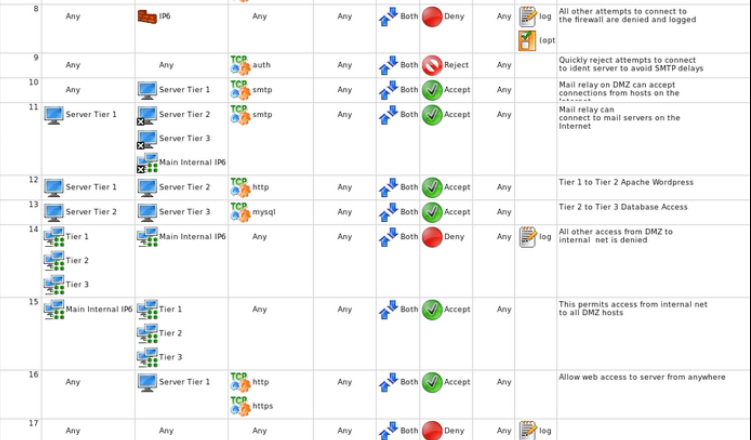
We'll now look at the firewall rules.  Rule 0 adds all internal networks to the Anti-Spoofing Rule.

Rule 1 enables loopback network communication on the router.

Rule 2 is sloppy but lets DHCP work on the internal network.  You can see this done better in Firewall Builder's templates.

Rule 3 gives the guest network access to essential services on the gateway.  FTP is provided so guests can take advantage of the USB Drive attached to the Linksys e3000.

Rule 4 ensure all trusted networks can access everything needed on the home gateway.

Rule 5 lets ping and traceroute work.

Rule 6 lets the router communicate to everything on the network.

Rules 8 through 10 enable the VPN to be accessed from the outside and HTTP for rule 9 which is disabled at this time.

Rule 11 allows printing while on a work VPN.  The work VPN disables all local access when the VPN is activated leaves me unable to reach my network printers. 

Rule 12 stops all traffic not otherwise allowed to the firewall box.

Rule 13 enables the guest network access to the outside world only.  Note the guest network can not access the other networks.

Rules 14,15, and 16 allow the trusted networks to communicate everywhere.

Rule 17 will drop everything else not previously allowed in my home firewall.

Here are the raw iptables rules script as created by Firewall Builder for DD-WRT.

Picture
Firewall Rules
Picture
Firewall Rules
Picture
Firewall Rules
Picture
Firewall Builder Panel of Objects
3 Comments
 
Opera Unite, Wordpress, and Windows Setup 07/08/2011
1 Comment
 
I posted how to host Wordpress on Opera Unite but I used Linux which isn't what most of the readers are using.  Unfortunately, I used the same process  as I did in my Linux guide, which requires two computers because I still haven't found an easy one-computer solution yet, but the internal managed connection makes sure my administrative password isn't transmitted unencrypted as Opera Unite still doesn't support SSL.  This WordPress on Windows with Opera Unite guide doesn't use symbolic links but achieves the desired results by splitting the site into two separate virtual hosts for administration and for runtime using Apache's name based virtual host feature.  This config sets up localhost for Opera Unite and the computer's IP address for maintenance. 

You need to download and install the Opera Web Browser and the WAMP Server package.  Follow this awesome WAMP Server tutorial to install the components needed for Wordpress. Unpack the Wordpress folder to c:/wamp/www/ and then rename c:/wamp/www/wordpress to c:/wamp/www/wb, where wb is your site's name.
Picture
Determine your computer's IP address with ipconfig. My address is 192.168.1.115. Assuming you took the defaults, edit c:\wamp\bin\apache\Apache2.2.17\conf\httpd.conf and change the Listen directives to the httpd.conf:

Listen 127.0.0.1:80
Listen 192.168.1.115:80


Picture
Next enable the virtual host by uncommenting (remove the # sign) the following line. 

# virtual hosts
#Include conf/extra/httpd-vhosts.conf


See the live file for more detail.

Picture
Open the extra\httpd-vhosts.conf file to enable name based virtual hosts.  See the live file for more detail.


Edit the virtual hosts so the name based virtual host will switch to the correct directory when the right name is used.

Picture
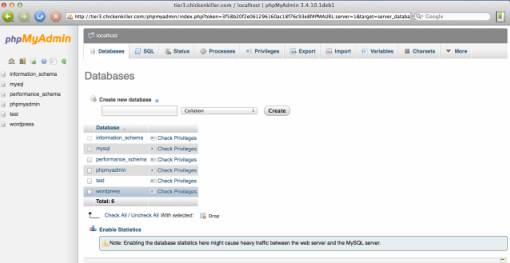
Create database for WordPress.  Visit the WordPress install site for how to do this.

Picture
Fill in the WordPress file wp-config.php as described on the WordPress site, with the required WordPress startup information.

Picture
Add the Opera Unite hostname into the hosts file for initialization.  This will be commented out after this.

Picture
Login to the WordPress install page to initialize your site and configure your install.  This will initialize the database with the site URL.

Picture
Comment out the host entry because your site will not work with it left on.

Picture
Set Address field in Opera to match your site name.

Picture
Edit your management computer, another one on your network, so the hosts file points to the Apache virtual host using the computer's IP address.  If you have one computer you wan switch this off and on, but it can impact the Opera reverse proxy.


And then manage your site with that computer.

Picture
Picture
View your site from another computer.  If you have one computer, you will have to edit your hosts file with the local IP address for using the console, and comment it out for running Opera.  I used Virtual PC to run the example which enables me to use the host as the management computer.  Perhaps someone will comment on an idea to make this work with one computer or someday I'll scratch that itch later.
1 Comment
 
Home Virtualized DMZ with pfSense and Web Server 06/10/2011
0 Comments
 
My home based virtualized network was setup using Virtualbox to simulate a boxed in DMZ within a normal LAN.  There are many discussions about best practices or why or why not you shouldn't host services at home, but for me, this was something I was building when I wasn't satisfied with the cloud services offered online.  Today, I consider those services adequate, which I why I use Weebly and Wordpress so my Virtual LAN server is actually used a LAB to hack or experiment with software.  However, I felt I would write this up the details before I took it offline. The pictures below are all running Opera Unite, WordPress, and MySQL in what I call Azcrumpty's Wonderblog.
Picture
pfSense NAT Rules
Firewall NAT Rules show mappings for external to internal NAT of HTTP, HTTPS, and SSH services. These rules enable full access to my actual ISP assigned address. Remember that I originally designed this to enable access to WWW services at home. So, access to SSH, HTTP, and HTTPS all go into tier 1. Tier 1 is multihomed, so to speak. You can get in from my ISP address and run Apache for HTTP or Webmin for HTTPS or you can get into tier 1 from Opera Unite.  This is a nice feature because I can use my IP address for personal use and use Opera Unite's address for public consumption.  Opera Unite enable's me to hide my personal IP address, and not publicy expose my network the way a dynamic DNS address does.

Picture
pfSese WAN Interface Rules
The WAN interface shows access from all hosts to the WAN services HTTP,HTTPS, and SSH from top to bottom. The next line allows OpenVPN from the internal network The final line allows full access from the VPN to all hosts in the network.

Picture
pfSene LAN as Tier 1
The First two rules deny access to the local home network and the cable modem. The next line denies access to all hosts on the OpenVPN network. The next rules allow the tier 1 LAN access to the LAN proxy port 3128, acess to the LAN DNS, and access to the LAN NTP server. The next two lines enable tier 1 to tier 2 HTTP/HTTPS access so the Opera Unite reverse proxy can talk to the Apache server coupled with Wordpress. The final rule allows ALL outbound except the 192.168 Class B which allows the Opera Unite browser to connect wherever it wants because I didn't feel like trying to white-list everthing the browser needed access to.  This rule would not be there if I used a typical reverse proxy such as Squid or Apache's mod_proxy and the ISP assigned address.

Picture
pfSense OPT1 LAN as WordPress Tier 2
Tier 2 LAN uses a similar design, denying access to the local LAN and cable modem, enabling supporting services for the servers within tier 2. The second to last line enables MySQL access to tier 3 so Wordpress can reach its database. The last line enables rsync access via SSH to tier 1 because Opera Unite insists on serving static content locally from the computer that runs Opera Unite. I could have also opened NFS from tier 1 to tier 2 and mounted the document root of the server as read only in tier 1, allowing Opera Unite to see the static content.

Picture
pfSense OPT2 LAN as MySQL Tier 3
Tier 3 LAN uses the same settings as the other tiers.

Picture
pfSense DNS forwarder with static assignments
I like to provide DNS for hostnames on the LAN. DNS makes troubleshooting easier as network dumps and log files can be made to show host names which makes determining where the data flows much easier to understand.
I could have also selected Register DHCP leases in DNS forwarder in the picture and I would not have to define the list of static names below. And of course, servers are supposed to use static assignments in the real world, so you can set DHCP off in your DMZ.

Picture
pfSense static DNS assignments example
I use static DNS assignments but DHCP name registration would also work.

Picture
pfSense serves NTP to the DMZ
Serve NTP to all servers in DMZ to keep clocks in sync.  Some might want to enable NTP access among the tiers so all servers can participate in time synchronization.  I only use the pfSense server in this example.

Picture
pfSense Transparent Proxy for OPT1 and OPT2
The pfSense proxy serves tier 2 and tier 3 using the transparent proxy option.  I didn't have to set the proxy settings on tier 2 and tier 3 at the application level.  Tier 1 doesn't force the proxy to support Opera Unite's needs.  My pre-Opera Unite design forced the proxy on tier 1, but this was opened to support Opera Unite, which didn't work correctly when using the proxy.

Picture
pfSense proxy blacklist setting for local LAN
Squid blacklists the local LAN 192.168.1.0/24, otherwise the proxy would enable the DMZ access to the home network.

Picture
OpenVPN Subnet in pfSense
OpenVPN settings shown in the picture.  Download the keys and the pfsense config file for this article.

Picture
pfSense running proxy, squid, DNSmasq, and NTP services
The services supporting the DMZ are enabled and shown in the picture.  Proxy via SQUID, dns forwarder, NTP server, and DHCP are all used for supporting the DMZ hosts.

pfSense Traffic Graphs for DMZ

Picture
DNS Entries Make Logs Easy to Read
Similar articles
  • Home Network With DMZ (azcrumpty.wordpress.com)
  • Home Network Features (azcrumpty.wordpress.com)
Add Comment
 
Home Virtualized DMZ VirtualBox Settings 06/10/2011
0 Comments
 
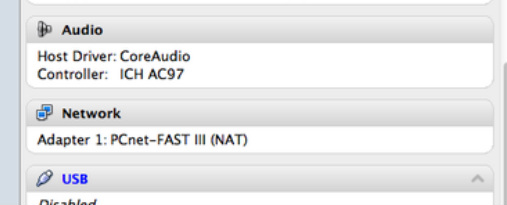
I wrote about how I used one computer with virtualization to make the DMZ computers. It is nice to build a computer by pointing and clicking instead of installing disk drives and network adapters. For the DMZ, I wanted to simulate 3 servers each with separate LANs and with firewalls between them. I used the pfSense system for this. I needed only to tell Virtuabox to create a virtual machine with four network interfaces. I assigned the interfaces to Virtuabox's internal network and labelled them separately. The unique label names of int1, int2, and int3 make a separate wired LAN for each of the router's interfaces. I attached each virtual machine server to  an interface inth
Picture
Virtualbox Internal Interfaces
Picture
Tier 1 Using interface int1
Picture
Virtualbox running pfSense with 4 Interfaces
Similar articles
  • Home Network With DMZ (azcrumpty.wordpress.com)
  • Home Network Features (azcrumpty.wordpress.com)
Add Comment
 
Home Virtualized DMZ Designs Not Chosen 06/08/2011
0 Comments
 
I have completed moving the WonderBlog into a three tier architecture in a virtualized DMZ and will document the configuration in the next few weeks, but I wanted to look over virtualized home network DMZ designs I didn't choose and discuss why I didn't choose them.

I wrote about the home based DMZ architecture I used, but that entry focused more on how the network was laid out. This post will discuss the designs I played with but didn't use for my home network architecture. My blog shows a three tier architecture in use, which consists of a client facing tier, an application tier, and a database tier. These three tiers are separate virtual machines, totaling four virtual machines on one server. The computer running those only has three gigabytes of RAM and I actually wanted 9 virtual machines. So I solved this problem of stuffing all of these virtual machines into three gigabytes by using operating system-level virtualization. This type of virtualization tends to be extremely efficient since it uses one virtual machine and lets the operating system partition off the virtual servers.

I used OpenBSD and OpenBSD's packet filter (pf), to manage all of the Solaris Zones and FreeBSD jails.  I thought about some other offshoot designs. The first design was to simply do the whole thing on one virtualized server. I could have put the firewall rules into the Solaris or FreeBSD host machine and used only one VM, but I found I liked working with separate pieces that made changing one part without harming others something I couldn't resist working with.  You have many choices. 

Simiar articles
  • Home Network Features (azcrumpty.wordpress.com)
  • Home Network With DMZ (azcrumpty.wordpress.com)

OpenBSD ifconfig Output

lo0: flags=8049<UP,LOOPBACK,RUNNING,MULTICAST> mtu 33204
     groups: lo
     inet 127.0.0.1 netmask 0xff000000
     inet6 ::1 prefixlen 128
     inet6 fe80::1%lo0 prefixlen 64 scopeid 0x6
em0: flags=8843<UP,BROADCAST,RUNNING,SIMPLEX,MULTICAST> mtu 1500
     lladdr 08:00:27:57:24:6b
     groups: egress
     media: Ethernet autoselect (1000baseT full-duplex)
     status: active
     inet 192.168.1.20 netmask 0xffffff00 broadcast 192.168.1.255
     inet6 fe80::a00:27ff:fe57:246b%em0 prefixlen 64 scopeid 0x1
     inet6 2002:43a4:a7f0:0:a00:27ff:fe57:246b prefixlen 64 autoconf pltime 16 vltime 26
em1: flags=8843<UP,BROADCAST,RUNNING,SIMPLEX,MULTICAST> mtu 1500
     lladdr 08:00:27:fb:e9:df
     media: Ethernet autoselect (1000baseT full-duplex)
     status: active
     inet 192.168.8.1 netmask 0xffffff00 broadcast 192.168.8.255
     inet6 fe80::a00:27ff:fefb:e9df%em1 prefixlen 64 scopeid 0x2
em2: flags=8843<UP,BROADCAST,RUNNING,SIMPLEX,MULTICAST> mtu 1500
     lladdr 08:00:27:68:63:2a
     media: Ethernet autoselect (1000baseT full-duplex)
     status: activea
     inet 192.168.10.1 netmask 0xffffff00 broadcast 192.168.10.255
     inet6 fe80::a00:27ff:fe68:632a%em2 prefixlen 64 scopeid 0x3
em3: flags=8843<UP,BROADCAST,RUNNING,SIMPLEX,MULTICAST> mtu 1500
     lladdr 08:00:27:a3:ad:7c
     media: Ethernet autoselect (1000baseT full-duplex)
     status: active
     inet 192.168.12.1 netmask 0xffffff00 broadcast 192.168.12.255
     inet6 fe80::a00:27ff:fea3:ad7c%em3 prefixlen 64 scopeid 0x4
     enc0: flags=0<> mtu 1536
     pflog0: flags=141<UP,RUNNING,PROMISC> mtu 33204
     groups: pflog
Picture
Solaris Zones Behind OpenBSD Router
Picture
OpenBSD in VirtualBOX With 4 Interfaces
The first interface is bridged to the Ubuntu host's ethernet adapter. The tier interfaces follow as int1, int2, int3. I have used this design with Linux's Kernel Based Virtual Machine (KVM), Virtualbox, and VirtualPC. The picture above shows Solaris is configured to use each interface. The Solaris Zones are assigned to each interface and they route to the OpenBSD server which performs firewall functions in packet filter.

Add Comment
 
Home Web Hosting With Opera Unite and MovableType 05/27/2011
1 Comment
 
I have hosted MovableType with Opera Unite and you will see, the same Document Root issues await. You will learn that link management depends upon the generation package you are using.  This install uses Ubuntu Linux.
Picture
Initialize Movable Type Normally
Install Movable Type per the guidelines and then initialize it using the Movable Type guidelines.

Picture
Configure Opera Unite
Configure Opera Unite's Computer name.  Remember to choose a name that makes the URL work with the site's content.

Picture
Opera Unite Web Proxy Path
Configure the web proxy settings ensuring the path is to your liking.  This will be the URI of the URL, /blog/ in this example.

Picture
/etc/hosts
Configure /etc/hosts with the blog aliased to localhost so Opera Unite can use a prettier name in the URL.

Picture
Movable Type Publishing Settings
Set the full site URL in Movable Type.  I used http://mt.azcrumpty.operaunite.com/blog.

Picture
Incorrect /mt-static path generation
This screen shot shows pages would be generated with /mt-static, making the URL http://mt.azcrumpty.operaunite.com/mt-static/...  Remember that the local machine's host name must come before content, so the site will look hideous.  We have to fix this in order to make it work.

Picture
Edit mt-config.cgi

Edit your mt-config.cgi file.
Configure the application to generate pages correctly. You need to ensure AdminCGIPath is a local address.  


Add your URI pathname to CGIPath.  I set it to /blog/cgi-bin/movabletype.

Add your URI pathname to StaticWebPath. I set it to /blog/cgi-bin/mt-static.

Picture
Symlink mt-static
Correct the mt-static path for external.

Picture
Correct internal fault with a symlink.

Picture
Place a meta-refresh to load /blog/ as /blog/your_blog_home.  The example is set to /blog/azcrumptys_first_blog.  The symlinks are there to make the Opera Unite Web Proxy find its static content.

Picture
Site Functional Externally
Picture
Site Root In Use by Opera Unite
All this work is due to Opera using the site root for the welcome page.  We had to shift the site and keep it aligned for internal (non Unite) and external (Unite Web Proxy) Use.

1 Comment
 
<< Previous

    Journal

    This is the place for notes and updates.

    azcrumptyon

    Archives

    March 2012
    November 2011
    October 2011
    July 2011
    June 2011
    May 2011
    April 2011

    Categories

    All
    Academic Degree
    Anonymous
    Apache
    Apache Http Server
    Automobile
    Blue
    Bridge
    Car
    Cars
    Compress
    Configure
    Copy
    DD WRT
    Diesel
    Diesel Engine
    Directories
    Disk Management
    Disklabel
    Disks
    Distance
    Distance Education
    Distance Learning
    Dmz
    Driving
    Eco
    Education
    Efficiency
    E Learning
    File
    Filtering
    Firewall
    Freebsd
    Fuel
    Fuel Economy In Automobiles
    Fuel Efficiency
    Green
    Gzip
    Hardware
    Hardware Virtualization
    Hitwise
    Home
    Hosting
    Howto
    Hub
    Iis
    Importer
    Ip Address
    Ipad
    Lan
    Lastpass
    Learning
    Linux
    Local Area Network
    Master Of Business Administration
    Microsoft
    Microsoft Windows
    Movable Type
    Movabletype
    Multitier Architecture
    Nat
    Network
    Network Interface Controller
    Network Time Protocol
    New York
    New York Times
    Onion
    Online
    Openbsd
    Openvpn
    Opera Unite
    Operating Systems
    Partitions
    Passenger
    Password Management
    Passwordsafe
    Paywall
    Pfsense
    Proxy
    Proxying And Filtering
    Publishing
    Reading
    Red
    Remote
    Replicate
    Reverse
    Reverse Proxy
    Router
    Samba
    Secure Shell
    Security
    Server
    Server Message Block
    Ssh
    Storage
    Tdi
    The Onion Router
    Theory And Research
    Tor
    Torque
    Transfer
    Turbo
    Turbodiesel
    Twitter
    Ubuntu
    United States
    Universal Serial Bus
    Unix
    Usb Flash Drive
    User (computing)
    Virtual Machine
    Virtual Private Network
    Virtualbox
    Virtualized Dmz
    Vpn
    Wan
    Web
    Windows
    Windows Xp
    Wordpress
    Zone

    RSS Feed


Create a free website with Weebly